The guide
Ask a marketer what Gemini's video tool does and you will get three different answers, all of them partly right. One person means the Gemini app on their phone. Another means Google Flow, the filmmaking workspace. A third means Google Vids, the browser editor. Google sells all three under the Gemini name, and they do not do the same job. This guide separates them cleanly. It covers what each tool makes, what it costs, and where it falls short, so you can pick the right one before you spend a credit or an afternoon. No tool in this guide replaces a shoot, a real customer, or an editor's judgement. Each one just moves a different part of video work faster. The honest summary is short. The Gemini app is for quick clips and edits by conversation. Flow is for cinematic shots you assemble into an ad. Vids is for a finished, edited video with a timeline, templates and voiceover. Start from the job, not from the brand name.
Three Gemini video tools, three different jobs: quick clips in the Gemini app, cinematic shots in Google Flow, and finished edited videos in Google Vids. Costs, limits and honest trade-offs, checked November 2026.
Key takeaways
Which Gemini video tool is which, in one minute?
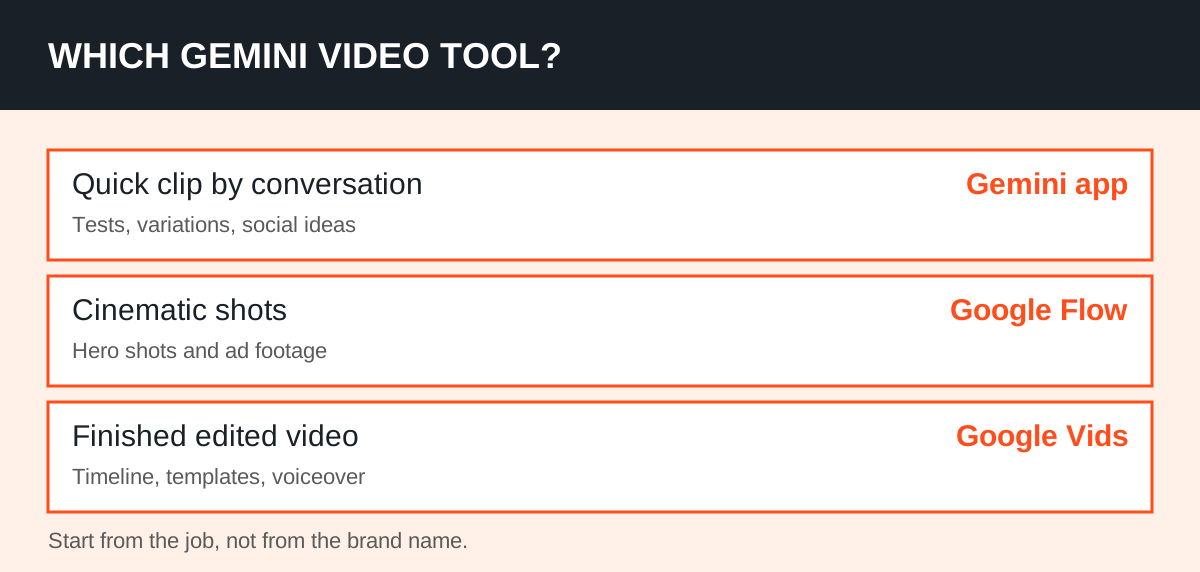
Start with the map, because most confusion about Gemini video comes from the name. Gemini is the model family and the app. Flow and Vids are the workspaces that use its video models. A marketer who opens the wrong workspace will conclude the tool is useless, when the job simply belonged elsewhere.
The Gemini app is the conversational route. You describe a clip, or upload a photo or video, and refine it with follow-up prompts. It runs Gemini Omni, Google's current video model in the app, which blends text, images and video in one generation pass.
Google Flow is the filmmaking route. It runs Veo 3.1, Google's cinematic video model, alongside Gemini Omni. You build shots from text, from start and end frames, or from reference images, then extend and sequence them into scenes.
Google Vids is the editing route. It is a browser video editor with templates, stock media, a timeline and transcript-based editing. Its AI video creation runs Gemini Omni 1.1, and it is where a clip becomes a finished video with titles, voiceover and structure.
That map drives every section below. If you need one clip fast, open the app. If you need a shot that looks like an advert, open Flow. If you need a video you can actually publish, open Vids.
What can the Gemini app actually make?
The Gemini app is the fastest route from an idea to a moving clip, and the easiest to overrate. Google's Gemini Apps help page describes video creation as a conversation: you can create videos in minutes with Gemini Omni, blending text, images and video, and keep editing the result with follow-up prompts.
That conversational editing is the real difference. You can ask it to change a background, remove an object, or reframe a scene, then ask again. For a marketer, that means testing five versions of a hook without reopening an editor. It does not mean the fifth version will be good. It means you can reach a decision faster.
Access is the first catch. The same help page says a personal account needs a Google AI plan to use video generation in the app, and the feature is not available to users under 18. A work or school account needs a qualifying Workspace licence.
Do not plan a campaign around the app until you have checked your own account's access.
The second catch is control. Aspect ratio control exists, and audio can be generated with the video, but a conversational tool is still a prompt away from a surprise. Hands, text, logos and product details are the usual failure points. Treat every app clip as a draft to inspect frame by frame, not as a finished asset.
Use the app for social tests, story ideas, and quick variations of a concept. Use it to learn what a prompt produces before you spend Flow credits on the same idea. Do not use it as your only production route for a paid campaign.
When does Google Flow earn its keep?
Flow earns its keep when the shot itself is the product: a hero product shot, a mood film for a landing page, or a set of cinematic clips for an advert. Veo 3.1 generates clips of four, six or eight seconds, with synchronised audio including dialogue and sound effects. Longer pieces come from extending clips and arranging them in Scenebuilder, Flow's sequencing tool.
Three modes matter for marketers. Text to video turns a written shot description into a clip. Frames to video starts from a first frame, with an optional end frame, which gives far more control over composition. Ingredients to video builds from reference images or clips, which is how you keep a product or character roughly consistent across shots.
Flow's pricing is where marketers get caught out, because it runs on credits, not on a flat fee. Google's Flow help pages list 50 free credits a day for every account, with paid Google AI plans adding a monthly pool on top. Credits are charged per generation, so a request that makes two clips costs twice.
| Tool in Flow | Credits per generation | What 50 free daily credits buy |
|---|---|---|
| Veo 3.1 Lite | 10 | 5 clips |
| Veo 3.1 Fast | 20 | 2 clips, with 10 credits left |
| Veo 3.1 Quality | 100 | None — one clip costs double the daily allowance |
| Gemini Omni Flash, 720p, 8 seconds | 12 | 4 clips, with 2 credits left |
Paid plans change the maths but not the logic. Google AI Plus costs $4.99 a month and adds 200 monthly credits. Pro costs $19.99 and adds 1,000. Ultra costs $99.99 or $199.99 and adds 10,000 or 25,000. Ultra also halves Lite and Fast to 5 and 10 credits, while Quality stays at 100.
The working rule is simple: draft in Lite or Fast, spend Quality only on the hero shot, and set outputs to one per prompt. A reroll is a new generation, and a new generation is a new charge. Flow shows the credit cost before it generates, so check it every time.
What does Google Vids add that the other two do not?
Vids adds the part marketers actually ship: structure. A clip is not a video, and a set of clips is not a campaign asset. Vids gives you a timeline, templates, stock media, and editing that works like editing a document, from its transcript. That is the difference between generating footage and finishing a video.
Google's September 2026 announcement opened AI video creation in Vids to anyone with a Google or Google Workspace account, at no cost, using Gemini Omni 1.1 Flash. You open Vids on desktop, choose "Create AI videos", and generate scenes in 1080p HD, or upscale existing clips to blend across a timeline.
The controls fit marketing work better than a bare prompt box. You can extend a scene while keeping its visual context, lighting, character appearance and environment consistent. You can set an exact clip duration, so a scene lands on the voiceover instead of near it. For a product launch, that control matters more than raw generation quality.
Vids also reaches the marketer's other jobs: templates for a product launch without manual editing, photo-to-promo videos for new stock, and landing-page or social videos for a team.
Google's Workspace blog on Gemini Omni in Vids adds the editing angle: prompt-based edits to existing footage, refreshed ad creative, and personal avatars for welcome videos and social clips, with avatars limited to users 18 and over.
Vids is not a replacement for Flow's cinematic shots, and it is not a professional editor. It is the fastest honest route from "we need a video this week" to a finished, publishable piece. Use Flow for the hero shot, then finish the video in Vids.
How much does a month of AI video actually cost?
Work it out from finished seconds, not from the plan price. A 30-second social advert built from four eight-second clips needs four generations, plus the drafts that did not make the cut. At three generations per usable shot, that advert is twelve generations, not four.
On Flow's free allowance, twelve Fast generations cost 240 credits, or about five days of daily credits, and that assumes nothing else is generated that week.
On Pro, the same twelve Fast clips cost 240 of its 1,000 monthly credits, plus the 50 daily credits every account receives. On that basis, Pro covers roughly four such adverts a month in Fast, before any other AI use.
Quality changes the answer sharply. Twelve Quality generations cost 1,200 credits, which exceeds Pro's whole monthly pool. That is why Quality belongs on one hero shot per video, not on every shot. Draft everything in Lite or Fast, then upgrade only the shot the viewer remembers.
Developers have a third route: the Gemini API, which bills Veo 3.1 per second rather than per clip. Published API rates in October 2026 were $0.40 a second for full Veo 3.1 at 720p or 1080p, $0.10 to $0.12 for Fast, and $0.05 to $0.08 for Lite, with audio on.
An eight-second full-quality clip therefore costs about $3.20 by API, against about $2.00 of Pro credit value for the same clip in Flow, if you price Pro's credits alone.
None of these routes includes the real cost: your time checking, cutting and fixing. Budget an hour of review and edit for every minute of AI video you plan to publish. If that hour is not in the plan, the tool has not saved anything.
A workflow that survives contact with reality?
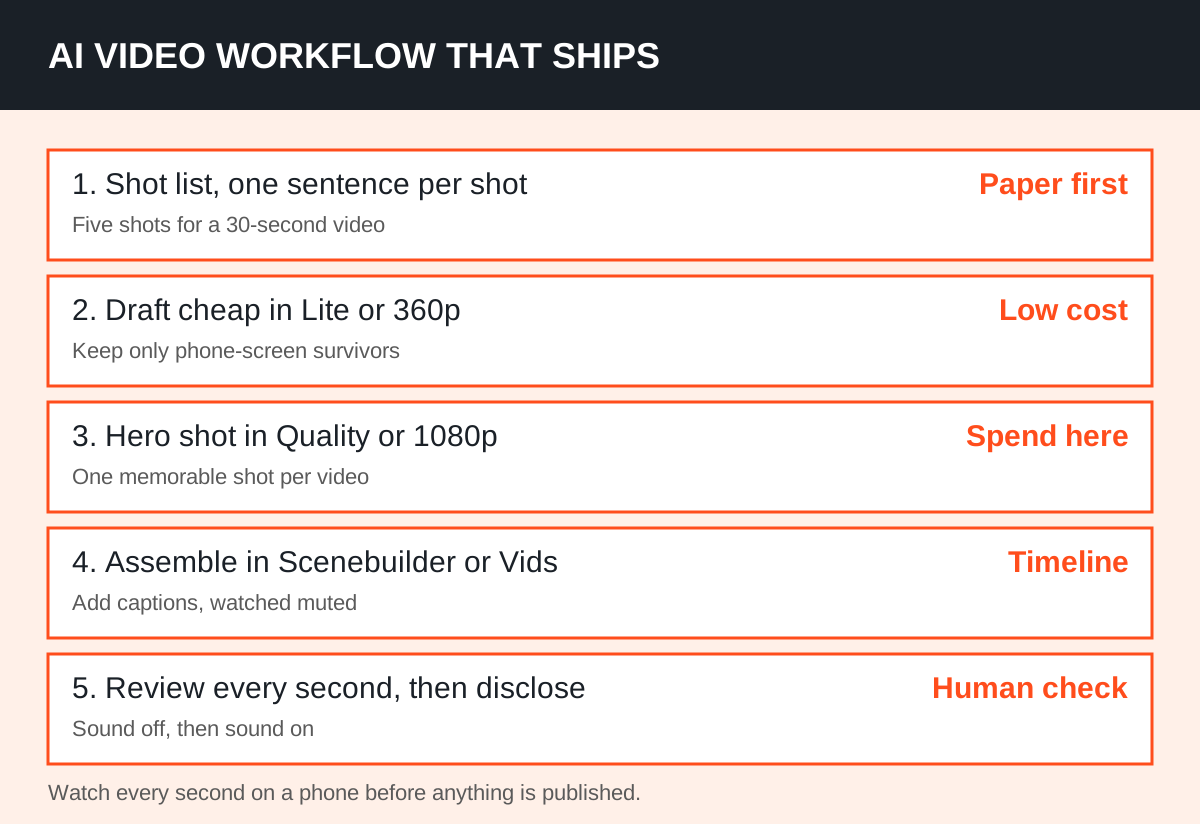
A workflow that works starts on paper, not in a prompt box. Write the shot list first: one sentence per shot, with the subject, the action, the setting and the sound. Five shots make a 30-second video. One prompt per shot beats one prompt for a whole film, because a failed shot can be regenerated without losing the rest.
Draft cheap, then spend. Test each shot in Lite, or in Omni's 360p draft mode where it is offered, and keep only the shots that survive a phone-screen viewing. Regenerate the hero shot in Quality, or in 1080p in Vids, and assemble the sequence in Flow's Scenebuilder or on the Vids timeline.
Then do the unglamorous work. Check product details, text, hands and logos frame by frame. Cut any shot where the product looks wrong, even if the shot looks beautiful. Add captions, because most social video is watched muted, and captions are where the message survives.
Finally, disclose. Every clip generated with Omni 1.1 in Vids carries an imperceptible SynthID watermark in its frames, and Flow's Veo output carries one too. Watermarks do not replace disclosure: label AI-generated video as AI-generated wherever your audience will see it, and never present it as real footage.
Our guide to ChatGPT ads and what advertisers should prepare covers the same disclosure instinct for AI ad placements: the platforms change, but the rule does not. If a viewer would feel misled on learning the truth, the asset is wrong.
What should you NOT use these tools for?
Do not use AI video for anything the viewer must trust as real. A product demonstration that invents a feature, a testimonial from a person who does not exist, or footage presented as a real place are not creative choices. They are misleading claims, and a watermark will not save them when a customer complains.
Do not build a campaign around a real person's face or voice without their clear permission, and do not prompt for prominent people. Flow's content rules block some of this outright, but the marketer's judgement has to cover the rest. A legal-looking clip is not the same as a consented one.
Do not expect brand consistency for free. AI tools drift: colours shift, logos warp, and a character changes face between shots. If exact brand assets matter, use reference frames and ingredients, keep the AI footage short, and put real product photography in the shots that carry the sale.
Do not skip the human edit. AI video fails quietly, in the third second of a clip nobody watched to the end. Watch every second, on a phone, with the sound off and then on, before anything is published. That check is the whole quality system.
The verdict is practical, not ideological. Gemini's video tools are excellent for drafts, tests, B-roll and short social assets, and genuinely useful for a small team with no shoot budget.
They are not a substitute for real footage where trust, accuracy or brand precision decides the sale. Use them to make more video, faster, and keep a human in charge of what the video claims.
If you want to compare AI tools before committing to a plan, our AI tools explorer lists the tools we track with plain-English verdicts. And if video is part of a wider content plan, our content and organic service page shows how video fits alongside search and social content, rather than replacing them.
Frequently asked questions
Which Gemini video tool should a marketer start with?
Start with Google Vids if you need a finished video this week, because it adds templates, a timeline and 1080p AI scenes to the generation step. Start with the Gemini app for quick clip tests by conversation, and move to Google Flow only when you need cinematic shots that Vids and the app cannot deliver.
Is Gemini video generation free?
It depends on the tool. Google Vids opened free AI video creation to any Google account in September 2026, using Gemini Omni 1.1. Google Flow gives every account 50 free credits a day, enough for five Lite or two Fast clips, but not for a Quality clip. Video generation in the Gemini app needs a Google AI plan on a personal account.
How long are Gemini video clips?
Veo 3.1 clips in Flow run four, six or eight seconds, and longer videos come from extending clips and sequencing them. Gemini Omni in the app and in Vids works in short scenes too, with Vids letting you set exact durations and extend scenes while keeping their look consistent. Plan in shots, not in minutes.
Can marketers use AI-generated video in paid ads?
Yes, with two conditions. First, check the product details, claims and branding frame by frame, because AI invents details quietly. Second, disclose that the video is AI-generated and never present it as real footage, a real customer, or a real product demonstration. The SynthID watermark inside Google's clips supports verification, but it does not replace honest labelling.